


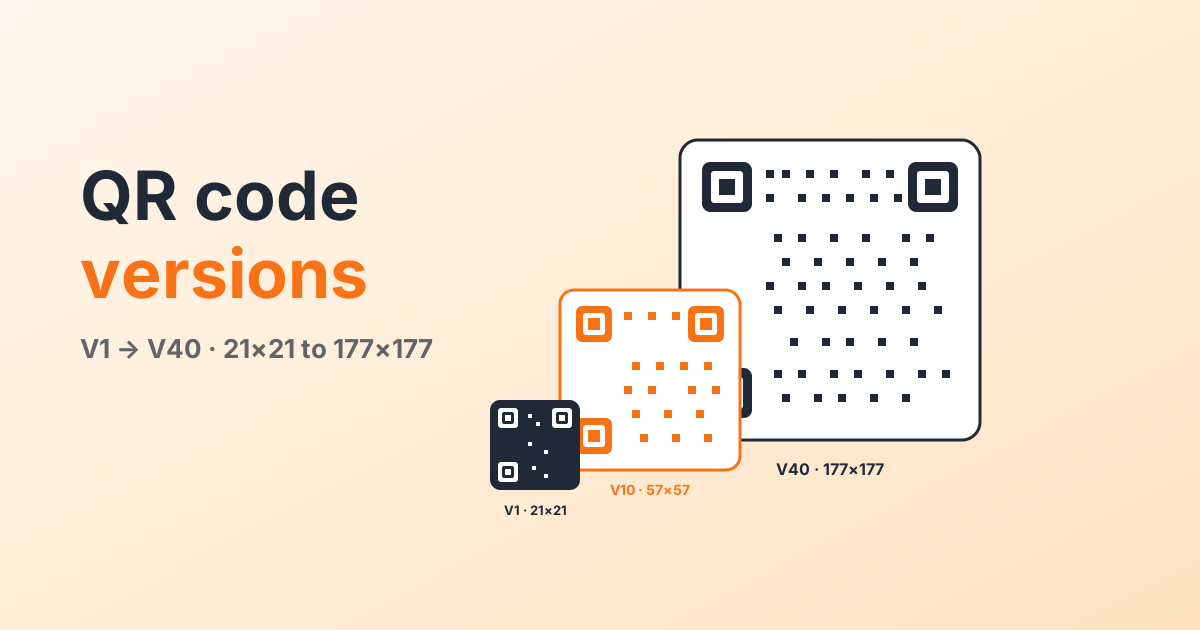
Every QR code is one of forty fixed sizes. The smallest is a tidy 21×21 grid of squares. The biggest is a wall-mounted 177×177. They are called versions in the spec, V1 through V40, and the version you end up with is decided automatically by what you encode and how robust you want the code to be.
Here is what that actually means, and why you would care.
What "version" actually means
A QR code is a grid of black and white squares called modules. Version 1 has a 21×21 grid. Every step up the ladder adds four modules per side. V2 is 25×25, V3 is 29×29, all the way up to V40 at 177×177.
The version is purely a size label. It is not a software version, V2 is not "newer" than V1, just bigger. A higher version holds more data. A lower one is faster for a phone to lock onto and scans from further away.
You do not pick the version, your content does
You hand the encoder some data and an error-correction level. It picks the smallest version that fits the data at that level. That is it.
A rough sense of scale at the default level M (15% error correction):
- A short URL like
qr-cow.com/r/abc123sits comfortably in V2 (25×25). - A vCard with name, phone, email, likely V5 or V6 (37×37 to 41×41).
- A Wi-Fi password block with a long passphrase, somewhere around V4 to V7.
- A 300-character paragraph of plain text, V10 or higher (57×57).
How error correction changes the version
Every QR code reserves some of its modules for error correction. You can pick how much:
- L (7%), clean print, indoor, low-wear codes.
- M (15%), the default. Fine for most things.
- Q (25%), recommended when there is a centred logo, since the logo covers modules.
- H (30%), outdoor, public surfaces, anything that will get scratched.
The more correction you ask for, the less room is left for actual data, so the version creeps up. Switching the same URL from L to H usually adds a step or two. Worth it if the code is going on a sticker that will end up in a coffee puddle.
How to read the version of any code
Easiest way: count the modules along one side of the code. The version is:
version = (modules_per_side − 17) / 4So a code that is 33 squares wide is V4. A code that is 57 wide is V10. The three big positioning squares in the corners are each 7 modules across, so if you count seven, a gap, then seven again on one side, you are nearly there.
Or skip the counting and just generate the code yourself in the studio, the encoded size tells you most of what you need.
How to keep your version low (and why bother)
A lower version means bigger modules at the same print size, and bigger modules are faster for a phone to lock onto. A V3 code prints sharp on a business card. A V20 code on the same card needs a steady camera and good light.
Rule of thumb: every step you keep off the version ladder, you roughly double the practical scan distance.
Three concrete ways to keep yours low:
- Use a dynamic QR. The encoded payload is just a short redirect like
qr-cow.com/r/abc. It stays at V2 forever, no matter what you link to. See static vs dynamic for when each one wins. - Shorten the URL.
example.com/promobeatsexample.com/landing/spring-2026/promo?utm_source=flyer&utm_medium=print. UTM tracking alone can push a static code two versions up. - Drop error correction one step if you are indoors. Going from Q back to M can save a version, and indoor printed material rarely needs Q.
Quick reference
Approximate character capacity at level M (numbers vary by data type, alphanumeric is a little higher, binary a little lower):
- V1, 21×21, about 14 characters.
- V5, 37×37, about 106 characters.
- V10, 57×57, about 271 characters.
- V20, 97×97, about 858 characters.
- V30, 137×137, about 1,732 characters.
- V40, 177×177, about 2,953 characters.
Now go open the studio and pick the lowest version that gives you the look and the data you want.

Comments
Log in to join the conversation.
Loading…